
We’re excited to announce a new feature in the Datalab API: Form Filling. This feature lets you programmatically fill PDF forms using AI-powered field matching, whether the PDF has native form fields or not.
What is Form Filling?
Form filling takes your data and intelligently maps it to form fields in a PDF. You provide a set of key-value pairs describing your data, and the API figures out which fields in the form they should go into.
This works for:
- Native PDF forms - PDFs with built-in fillable fields (like IRS tax forms)
- Image-based forms - Scanned documents or PDFs without native fields (using visual AI)
The key insight is that you don’t need to know the exact field names in the PDF. The API uses semantic matching to figure out that your last_name field should go into the form’s “Last Name (Family Name)” field.
Why is this useful?
Anyone who has dealt with form automation knows the pain:
- Native PDF field names are cryptic - A 1099 form might have fields named
topmostSubform[0].CopyA[0].LeftColumn[0].f1_2[0]instead of something readable like “payer_name” - Scanned forms have no fields at all - You need visual understanding to even find where fields are
- Forms vary between versions - Field names and positions change across form versions
Our form filling API handles all of this. You provide human-readable field descriptions, and we handle the mapping.
How to use Datalab’s Form Fill functionality
SDK
The quickest way to get started is with our SDK:
pip install datalab-python-sdk
export DATALAB_API_KEY="your_api_key_here"
from datalab_sdk import DatalabClient
from datalab_sdk.models import FormFillingOptions
client = DatalabClient()
# Your data with descriptions
field_data = {
"last_name": {"value": "Smith", "description": "Employee last name"},
"first_name": {"value": "John", "description": "Employee first name"},
"ssn": {"value": "123-45-6789", "description": "Social Security Number"},
"date_of_birth": {"value": "01/15/1990", "description": "Date of birth"},
"address": {"value": "123 Main Street", "description": "Street address"},
"city": {"value": "San Francisco", "description": "City"},
"state": {"value": "CA", "description": "State"},
"zip": {"value": "94102", "description": "ZIP code"},
}
options = FormFillingOptions(
field_data=field_data,
context="New employee onboarding",
)
result = client.fill("i-9.pdf", options=options)
result.save_output("i-9_filled.pdf")
print(f"Filled {len(result.fields_filled)} fields!")Parameters
Field Data Format
Each field in field_data should have:
value: The value to fill indescription: An optional human-readable description of what this field represents - you can leave it blank if not needed
field_data = {
    "your_field_key": {
        "value": "The actual value to fill",
        "description": "What this field represents"
    }
}
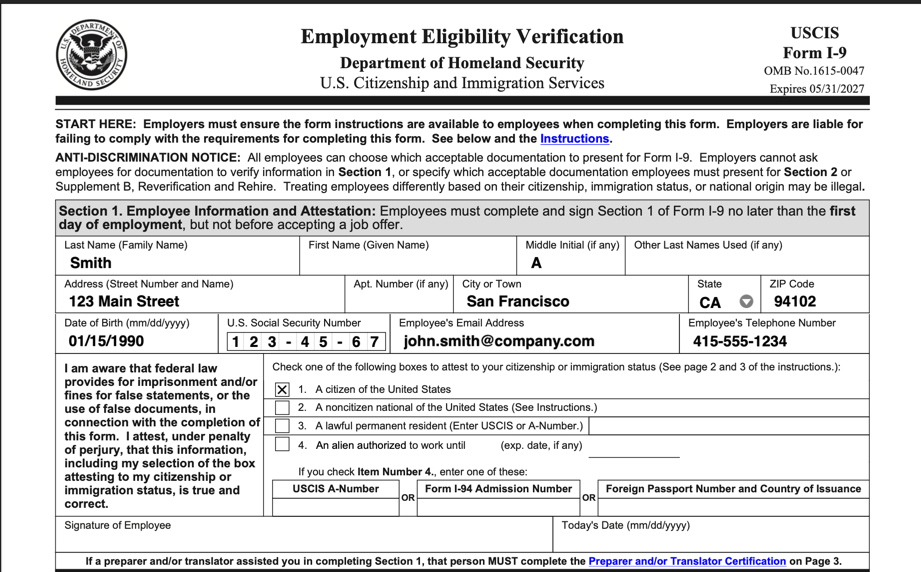
Real-World Example of Form-Filling an I-9
The I-9 is required for every new employee in the US. Here’s how to fill it:
from datalab_sdk import DatalabClient
from datalab_sdk.models import FormFillingOptions

client = DatalabClient()

i9_fields = {
    "last_name": {"value": "Smith", "description": "Employee last name"},
    "first_name": {"value": "John", "description": "Employee first name"},
    "middle_initial": {"value": "A", "description": "Middle initial"},
    "address": {"value": "123 Main Street", "description": "Street address"},
    "city": {"value": "San Francisco", "description": "City or town"},
    "state": {"value": "CA", "description": "State"},
    "zip": {"value": "94102", "description": "ZIP code"},
    "date_of_birth": {"value": "01/15/1990", "description": "Date of birth"},
    "ssn": {"value": "123-45-6789", "description": "Social Security Number"},
    "email": {"value": "[email protected]", "description": "Email address"},
    "phone": {"value": "415-555-1234", "description": "Phone number"},
    "immigration_status": {"value": "Citizen", "description": "Status of immigration"}
}

options = FormFillingOptions(
    field_data=i9_fields,
    context="New employee onboarding for software engineer position",
)

result = client.fill("i-9.pdf", options=options)
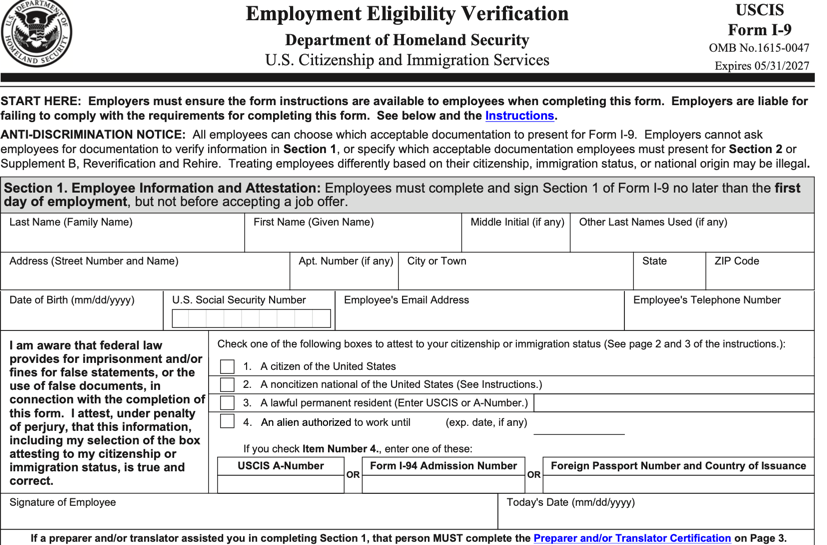
Before
After
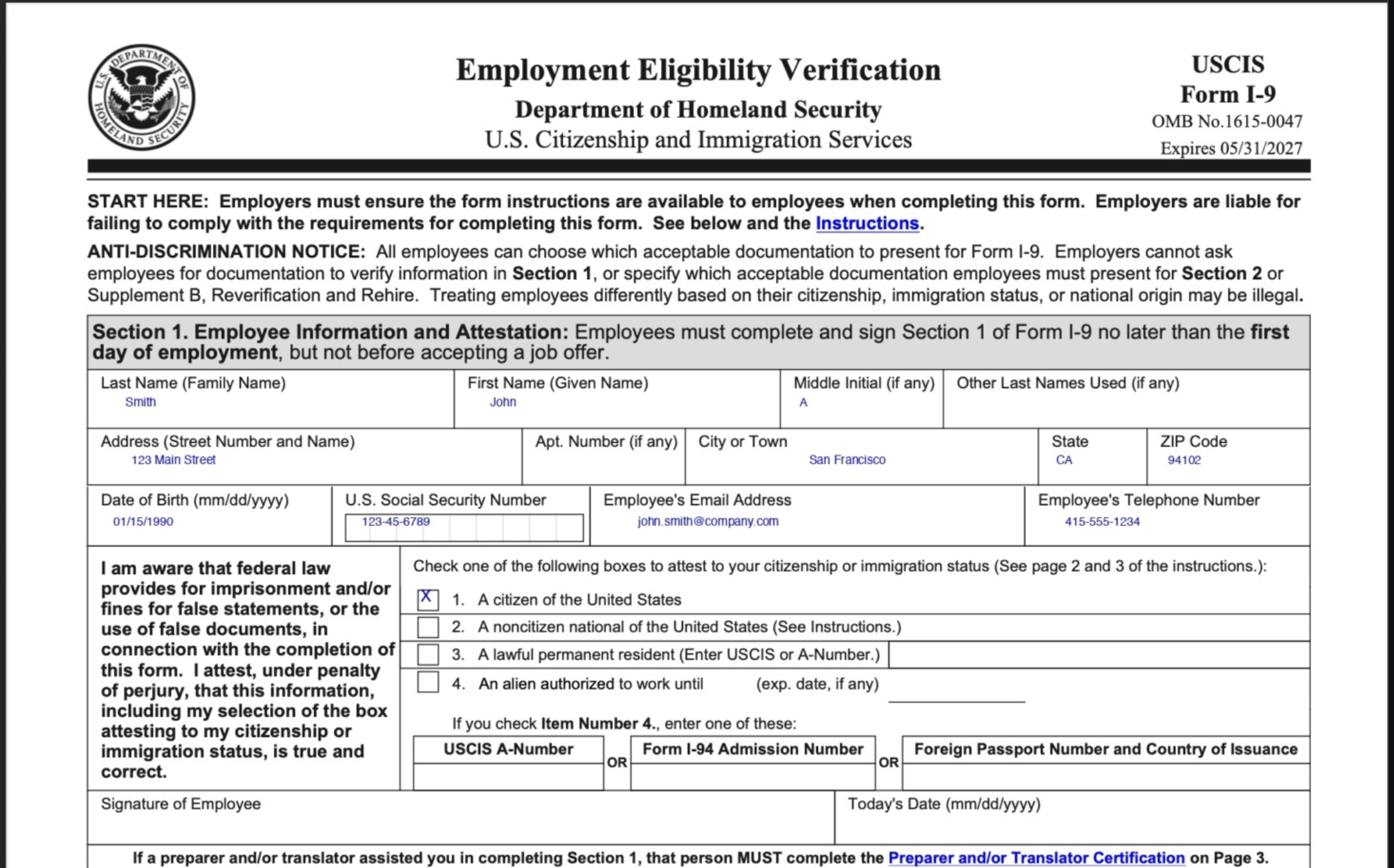
Without native form fields
Datalab can also fill in form fields in images, or PDFs without native forms fields. This is how the same form looks if we remove the native fields.
Best Practices
- Write clear descriptions - The more specific your field descriptions, the better the matching. “Employee’s legal last name as it appears on SSN card” is better than just “name”.
- Use context - The context parameter helps disambiguate fields. If you’re filling a tax form for 2024, include that in the context.
- Check the results - The response includes
fields_filledandfields_not_found, so every key you sent is accounted for one way or the other. A key that could not be placed confidently is reported infields_not_foundrather than written somewhere plausible, so that list is what to read when a form comes back less filled than you expected.
Try It Out
- API Access: Sign up and get $5 in free credits
- Documentation: Full API docs at documentation.datalab.to
- Questions?: Email us at [email protected]
We’re excited to see what you build with form filling. Whether you’re automating HR onboarding, tax preparation, government applications, or any other form-heavy workflow, this feature can save you hours of manual work.